
Exactly What You Need to Know to Use Apartment Therapy’s New Mood Board Tool
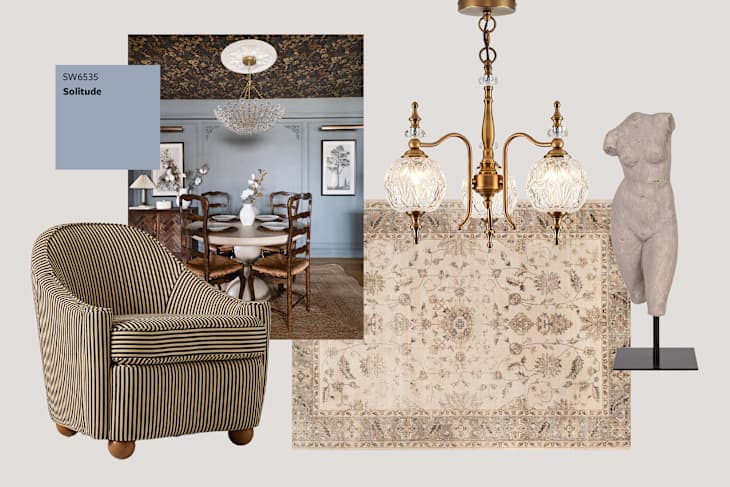
Do you have a ton of gorgeous interior photos saved to your camera roll, but you’re not sure how to bring your favorite elements from them into your actual space? Or maybe you screenshot products you love every time you come across them, but you have no idea how they’d all look together?
Exciting news: Mood Board, Apartment Therapy’s new design tool, can help you organize inspiration, products, and paint swatches all on one canvas — and now, you can collaborate with others. Invite friends, family, or roommates to join your board and help shape your design vision together. It’s simple, intuitive, and takes just minutes — no design experience needed. And yes, it’s completely free to use!
What’s the purpose of a Mood Board?
When you first embark on a design project, it can be so hard to know where to even begin, or how to bring all of your great ideas together. Now you can start with our Mood Board creator. Just like professional designers, you can collect all of your design elements — from photos to products to swatches — on one canvas, and then edit as much as you want until you nail down the perfect vibe for your space. Visualizing your design just got way easier.
Plus, once you’ve landed on project details you feel great about, you can share your board with family and friends via text, email, and social media so they can weigh in, too.
What can I add to my Mood Board?
Mood Board is powered by Apartment Therapy’s deep library of tens of thousands of home photos, decor and furniture products, and paint colors. It’s easy to use, surprisingly powerful, and packed with smart features that will make your board look professionally designed.
You can create your projects using the following:
- Editor picks: Start with curated collections assembled by Apartment Therapy editors, all themed around design aesthetics and room functionalities we love.
- Apartment Therapy’s vast library: Search our editorial archive, including exclusive House Tour photos, furniture and decor products curated by our editors, and more than 1,500 paint colors.
- Your own photos and notes: Upload your own pictures or add text to personalize your canvas.
- Smart tools: Automatically remove backgrounds, layer, and crop to help your layout look clean, beautiful, and intentional.

How do I create a Mood Board?
Ready to get started and bring your design vision to life? Here’s how to begin:
- Go to https://www.apartmenttherapy.com/mood-board.
- Browse our collections of photos, products, and colors, or upload your own images.
- Tap on an image to add it onto your canvas.
- Move, resize, crop, and layer until it feels just right.
- Add text to personalize your board.
How do I edit a photo on my Mood Board?
If you’re hoping to tweak how your photo appears on your Mood Board, follow these instructions.
- Tap on any photo you’ve added to the canvas.
- Use the Crop tool to trim the image to focus on what you love about it and delete the extra stuff.
- Tap the Remove Background icon to automatically cut out the background — perfect for product images or layered looks.
- Reposition, rotate, or scale the photo to fit your layout.
How do I invite collaborators to my Mood Board?
You can now share any of your Mood Boards with up to 3 collaborators. The invitation process is simple and flexible:
Steps to Invite:
- Select “Invite Collaborators.”
- Enter the email address of the person you want to invite.
- (Optional) Add a personal message.
- Tap “Send Invite.”
Once the invitation is sent:
- The invited user will appear under your board as “Pending Invitation.”
- Tap the arrow next to their name to either:
- Resend the invitation via email
- Remove their access (revoke the invite)
As the Mood Board owner, you are in control of who can join and can manage access at any time.
How do collaborators accept their invitation?
Your invitees have two easy ways to accept and join your Mood Board:
Option A: From the email invitation
- They’ll receive an email with a prompt to “Accept Invitation.”
- If they’re not logged in or registered, they’ll be prompted to log in or create an account.
Option B: From their account
- Logged-in users can go to the Mood Boards section of their account.
How do I download and share my Mood Board?
Once you’ve completed and perfected your Mood Board, you’re ready to save it (or show it to the world!).
- Tap Save (you’ll need to be logged in or create a free account).
- Select Download to download your board as an image.
What are some quick tips for a better Mood Board?
Of course, we’ve got tips to help you curate your most useful Mood Board ever.
- Start with a hero photo of a room that captures your overall vision.
- Choose images of two to three furniture pieces that will anchor the space.
- Include decor items (like pillows, vases, or art) to add interest.
- Finish with a color palette — consider both a wall color and accent colors — to tie everything together.
- Don’t feel like you need to overcrowd your canvas. Sometimes the most effective boards are the simplest.